Showing posts with label Microsoft Teams. Show all posts

Wednesday, 31 March 2021

Teams ♥ Dataverse for Teams

 About a month ago we had the annual Scottish Summit. It's a fantastic event organised by an amazing crew with support from sponsors and volunteers. The last in-person event was last year before different countries started to head into lockdown due to the global pandemic. This year it was a virtual event and it was fun. I myself did not stay awake for the whole event as I'm in a timezone where it gets late in the night as the event progresses but waking up to see the commotion on Twitter was cool which shows the global reach of Scottish Summit.

This year I presented alongside Daniel Laskewitz, a good friend and Microsoft MVP in the Netherlands, who also has a YouTube channel. We presented on Teams loves Dataverse for Teams, specifically on the Power Apps side.

What we presented

I covered how you can create an environment for a team and create a Canvas app from scratch within teams, including creating your own tables. For the use case I created a simple timesheet entry app. Note the emphasis on simple as this is not something I would recommend if you're an organisation that requires a timesheet entry for your internal and external resources as that's better suited by an enterprise solution. This was merely for the purpose to show you how straight forward it is to create your own tables and Canvas app from scratch in Dataverse for Teams.

Daniel covered how you can get started with the templates that are available today. A couple of weeks before the event, two new templates were released which Daniel did not cover. The Dataverse templates available today are

  1. Employee ideas - covered by Daniel
  2. Inspection - covered by Daniel
  3. Issue Reporting - covered by Daniel
  4. Bulletin
  5. Milestones

Watch on demand

Additional notes from me

When I was explaining how to default the current user in the Name field, what I forgot to explain is best practice in applying a variable and condition that checks the mode the form is in. A variable will help with the performance of the app and when defaulting to the current user based on the form mode as explained by Shane Young in this vlog. Shane's YouTube channel is full of great Power Apps content so make sure you subscribe. You won't get bored by watching his videos, he is quite the entertainer 😄

How to learn about the other two Dataverse for Teams templates

April Dunnam, another well known person in our Microsoft community has a couple of vlogs that were published shortly after the two templates were released so I recommend you check these out too.
Like Shane's, April's YouTube channel is a giant library of content so subscribe to her channel too. Both release weekly videos.

April also recently appeared in the #LessCodeMorePower Channel 9 show with Dona Sarkar and Sarah Critchley in creating Canvas apps in Microsoft Teams which I highly recommend you watch too.

How to keep up to date on what's next for Dataverse for Teams

Both of these sources will announce when something new and cool has been released for Dataverse for Teams.

Friday, 12 February 2021

How to display line breaks in Teams Meeting from Microsoft Dataverse or Dynamics 365

In my previous WTF episode I outlined how you can create and send a Teams Meeting invite from Microsoft Dataverse and Dynamics 365. What I mentioned towards the end was that in the next WTF episode I'd share how to display line breaks in the Teams Meeting as it was rendering the value from the Description column as a single line of text.

Let's Automate

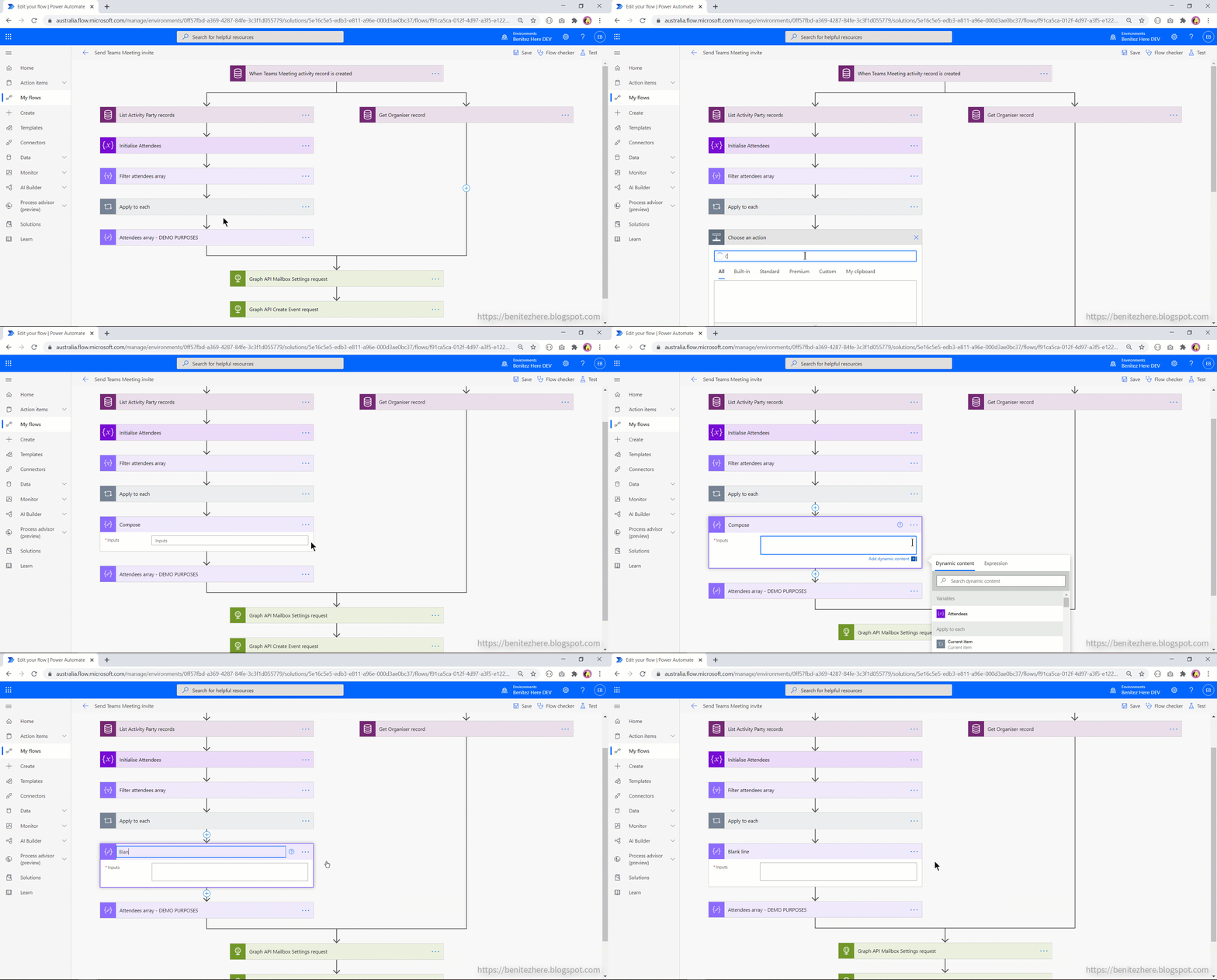
This is what my cloud flow looks in Power Automate. 


This should look similar to the previous WTF episode where the difference here is 

  1. The addition of a Compose action
  2. A change of expression in the final HTTP action
Since I already covered the cloud flow in detail in my previous WTF episode, I will only cover the above two in this WTF episode.

The Compose action

This action is for the purpose of referencing a new line in the expression used for the "Content" property in the Body of the HTTP action that calls the Create Event Graph API request.

As seen in my vlog I simply hit enter on my keyboard in the Compose action. Nothing else is required.

Expression for the Content property

In the final HTTP action the expression is updated to the following
if(equals(triggerOutputs()?['body/description'], null, null), '', replace(triggerOutputs()?['body/description'], outputs('Blank_line'), '<br>'))


In the scenario where the Description column is null and you don't have logic to be able to deal with null values, the cloud flow will fail. Therefore the expression incorporates two functions to handle when the Description column in the Teams Meeting Activity record in Microsoft Dataverse or Dynamics 365 is null. This is good practice when using expressions for columns where there is a possibility that the column value can be null. For more best practices on what you should be doing with cloud flows check out the white paper, A Guide to Building Enterprise-ready Flows that was authored by Jerry Weinstock and other prominent experts including input from the product team.

What are the two functions used?

The two functions are

If

The If function provides a conditional check where the true or false value defined is used in the output.
In this use case, the cloud flow will check if the Description field is null and if it equals true, the cloud flow will return null as the output. Otherwise if the Description field is not null, the cloud flow will return the false value.

Replace

The Replace function is used for the false value where its purpose is to find all the blank lines and replace it with the HTML <br> tag so that it will render as line breaks in the Teams Meeting created and sent via the Create Event Graph API request from the HTTP action.

Cloud flow in action

Create a new Teams Meeting Activity in Microsoft Dataverse or Dynamics 365 and let the magic flow ✨

When there is a description provided, the Teams Meeting will render the line breaks.


When there is no description provided, the Teams Meeting will display the content as blank. The cloud flow will not fail.

Summary

By using a Compose action and referencing this in an expression will display the value from the Multiline Text column with line breaks in the Teams Meeting that is created and sent from Microsoft Dataverse or Dynamics 365.

Stay tuned as in the next WTF episode I'll show you how to easily apply HTML next when creating and sending a Teams Meeting from Microsoft Dataverse or Dynamics 365.

Wednesday, 4 December 2019

Rickrolling these holidays with Power Automate and Microsoft Teams

Earlier this month I was asked by the wonderful Megan Walker whether I'd like to participate in the MVP Advent Calendar 2019. Of course I said yes! I thought about what I could share and decided to do something fun rather than my usual "How-To's." I learnt some new things as a result.

The idea

Since the holidays 🎄 is around the corner I wanted to do something in the theme of the season. One thing that most of us will be doing is saying bye to everyone before heading out the door or finishing up for the day. I came up with an Instant Flow that I could use where it would be triggered from my Power Automate app from my mobile. With one tap I can notify my crew in Microsoft Teams and send an email to all my primary contacts of the clients I work with.

BUT... I took a leaf out of Ashlee Culmsee's book where I decided to Rickroll my team from the message I post in the channel in Microsoft Teams 😁

Watch my vlog below and you can download my Power Automate here.

Let's Automate

This is what my Power Automate with Flow looks like, refer to screenshot below. We're using a parallel branch so that the emails sent to the contacts and the message posted to the channel in Microsoft Teams can be processed at the same time independently.

1.0 Manually trigger a Flow

As mentioned this will be an Instant Flow where the trigger will be a Flow button so that I can run my Power Automate with Flow from my mobile.

1.1 Retrieve Primary Contact records

When your Power Automate with Flow is in a solution and the CDS List Records action is used, an additional field will appear in the action called FetchXML.


This will be familiar to professionals who have been working with Dynamics 365 for a while. It's been used to query data to produce results that can't be achieved out-of-the-box in Advanced Find and for custom reports.

Using the FetchXML field in the CDS List Records action allows us to apply queries that we're already used to in Power Automate. For my query I only want to return contacts that are a primary contact for an account where I am the Owner of the contact record.

This is achieved by building the query in Advanced Find in the model-driven app and then selecting the download FetchXML button from the Advanced Find window. The FetchXML will then be available to use.

Copy and paste into the Fetch XML Query field.

1.2 Apply to Each

To email all the contacts returned in the CDS List Records action, an Apply to Each action will be used.

1.3 Send an email to Contact

The Office 365 Send an Email (V2) action will be used to send the email to the contacts returned in the CDS List Records action.

Bonus tip

One thing to be aware of is even though the full list of fields will appear when you use dynamic content, you can only reference the fields that were included as part of your FetchXML query. In my scenario I only included the fullname Contact field and therefore am referencing this field since I did not include firstname Contact field in my FetchXML query. If you do reference fields that are not in your FetchXML query from the CDS List Records action it will appear as blank.

Below is an example screenshot of an email when referencing the firstname. Since firstname is an attribute not defined in the FetchXML query, nothing is displayed in the output of the sent email.

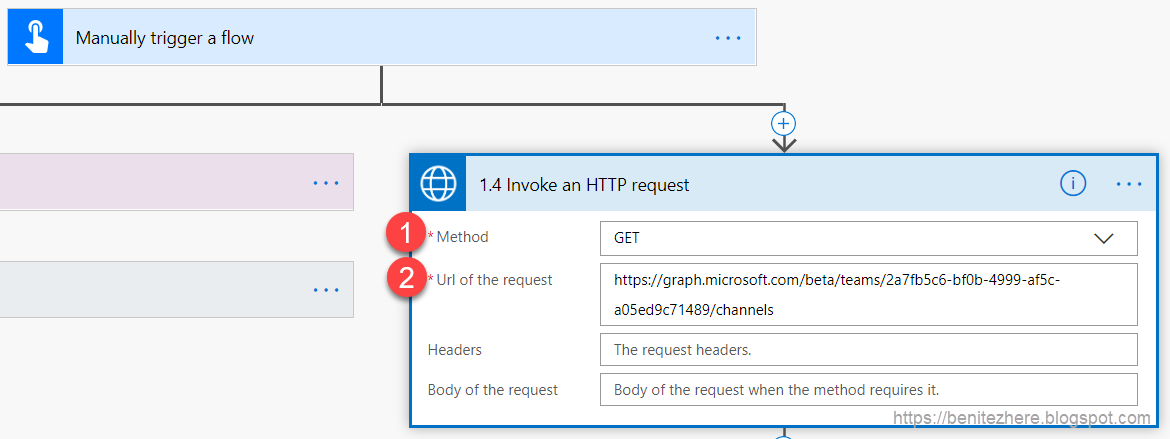
1.4 Invoke an HTTP request

Currently we can't process mentions in the available Microsoft Teams actions however the Graph APIs can be called. Two Graph API requests will be used in my Power Automate with Flow.

First of all in order to perform any Graph API request there needs to be some type of authentication which can be achieved using the Invoke an HTTP request action as it will use Azure AD. In this action you must provide the following for the connector
  1. Base URL
  2. Base Resource URI
In my scenario it will be https://graph.microsoft.com. Below is an example screenshot.


Once the connector has been successfully completed, you'll then see the ability to
  1. Declare the type of API request 
  2. Provide the JSON body for the API request
Below is a screenshot from my Power Automate with Flow.


The List channels ID API request is used as per the docs.microsoft.com article to retrieve the Channel ID and the name of the Channel so that we can use these two properties downstream in Power Automate with Flow. Part of the API request requires the Teams ID.

1.4.1 How to identify the Teams ID

The ID of a Team can be identified using the List all teams in Microsoft Teams for an organization API request and using Graph API Explorer to perform the request, you can retrieve the Teams ID.

1.5 Channel Name

Using a Compose action we can reference the displayName property from the response in the previous 1.4 Invoke an HTTP request action so that it can be used in our final action downstream. The expression I am using is the following

outputs('Invoke_an_HTTP_request')?['body']?['value'][0]?['displayName']


Since I'll be using it more than once in the final action I thought a Compose action would be more practical rather than referencing/writing the expression multiple times.

1.6 Channel ID

I'll also need the ID of the channel for the next action and using a Compose action to reference the ID property from the List channels response from the previous 1.4 Invoke an HTTP request action. The expression I am using is the following

outputs('1.4_Invoke_an_HTTP_request')?['body']?['value'][0]?['id']

1.7 Invoke an HTTP request

The finale is using the Create chatMessage in channel API request as per the docs.microsoft.com article. In the request URL this is where we can reference the channel ID from the output of the 1.6 Channel ID action.

In the JSON Body there will also be a reference to the channel name from the output of the 1.5 Channel action.


I came up with the schema for the JSON Body from using the "Get Messages" action in a separate Power Automate with Flow where I was able to grab the body that contained the channel I wanted to post a message to.


This is what it looks like when viewing the entire response in Notepad++ where I've highlighted the part I used.


By using that section of the JSON Body I adjusted it by adding my own message and a URL reference to the Rick Roll video on YouTube.

Rickrolling in action with Power Automate and Microsoft Teams

Here's the fun part!!!!

On a more serious note

The emails will actually send too for my clients to be notified of my out-of-office dates as part of the holiday season.

Summary

I learnt a lot about the Microsoft Graph API and Graph Explorer in this fun holiday themed Power Automate. There's a lot more that we can do with the Microsoft Graph API if there are Microsoft related actions that are not available today in Power Automate. One thing to bear in mind is that Create chatMessage in channel API request is a beta API and it says clearly that it's not recommended for Production purposes.

Make sure you stay tuned for more gifts as part of the MVP Advent Calendar and shout to Megan Walker for kindly asking me if I'd like to participate.